Create Northwind Traders Code First with Entity Framework Core - Part 1

In this 2 part series, I'll show you how to create a code first version of Northwind using Entity Framework Core. We'll start by creating the database from scripts, scaffolding the model within a project, adding a migration for the initial create, and finally, adding a migration to seed the data from scripts. Once completed, you'll have a code first version of Northwind that you can run anywhere - Windows, Linux, or Mac.
Prerequisites
Create the solution
We will begin by creating a new ASP.NET Core Web Application.
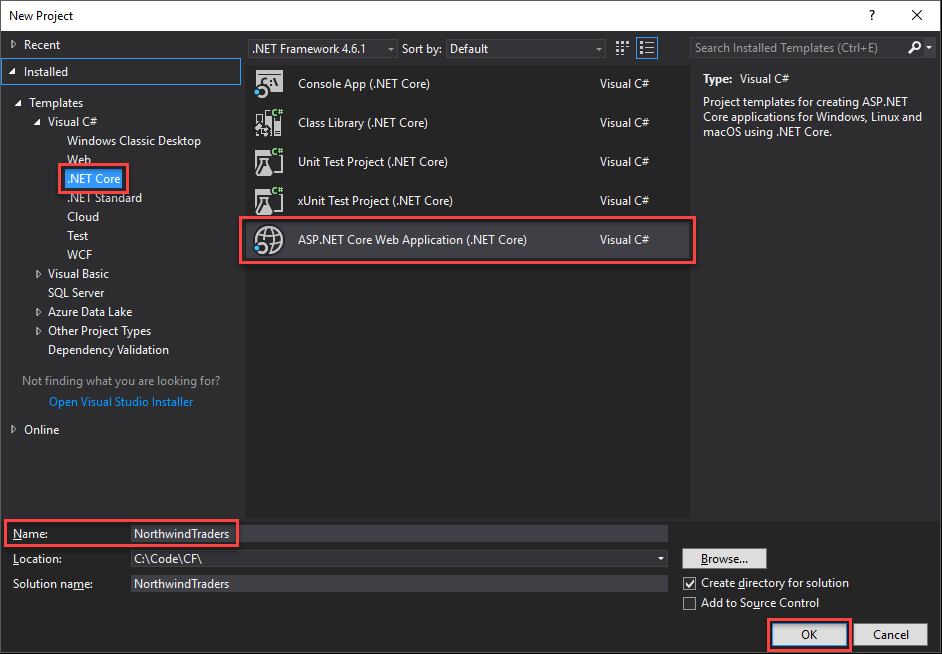
- Open Visual Studio 2017 and click File | New | Project…
- Under .NET Core, select ASP.NET Core Web Application (.NET Core)
- Set Name to NorthwindTraders
- Click OK
Pro Tip.NET CoreVisual Studio Installer.NET Core cross-platform development
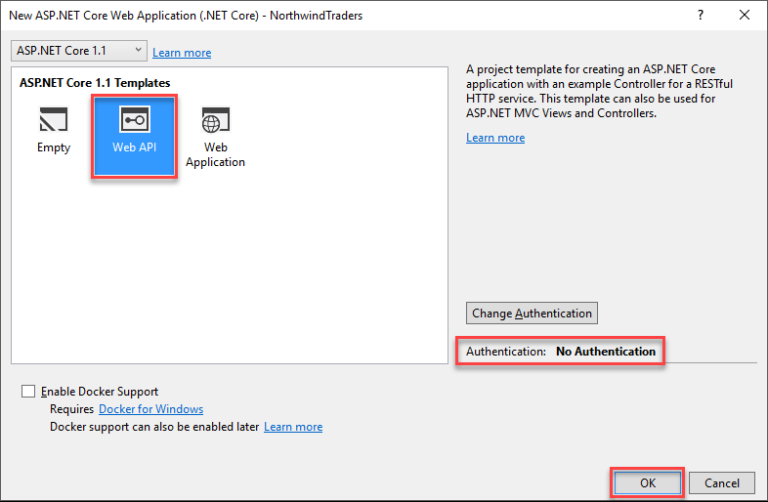
- Select Web API
- Set Authentication to No Authentication
- Click OK
Next, we will create a Class Library (.NET Core) project to contain our model and data classes.
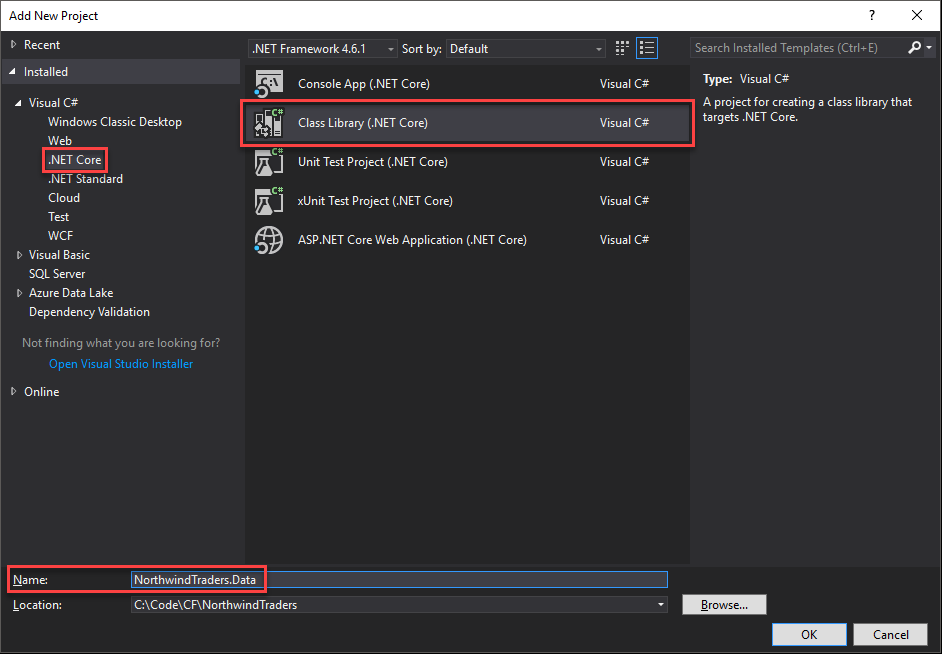
- Right-click on the NorthwindTraders solution and click Add | New Project…
- Within .NET Core select Class Library (.NET Core)
- Set Name to NorthwindTraders.Data
- Click OK
- Within the newly created NorthwindTraders.Data project, delete the Class1.cs file.
Now we'll add a reference from the NorthwindTraders project to our NorthwindTraders.Data project.
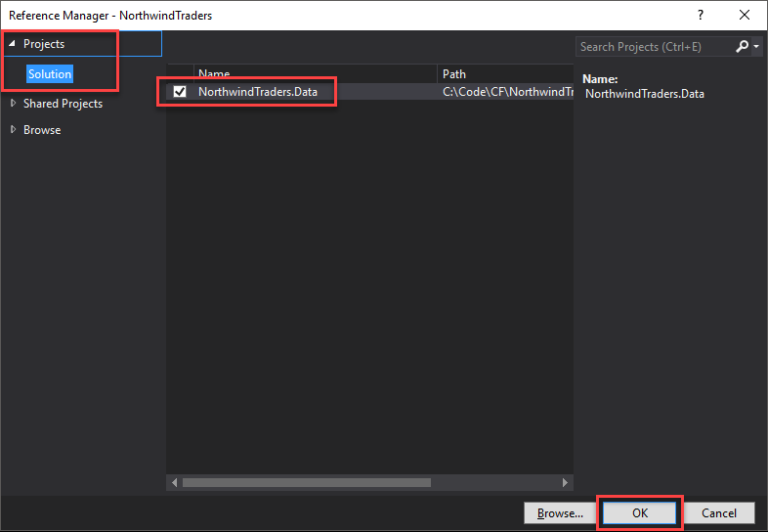
- Within the NorthwindTraders project, right-click on Dependencies and click Add Reference…
- Under Projects | Solution, check the NorthwindTraders.Data project
- Click OK
Finally, we'll install the necessary NuGet packages to use Entity Framework Core in NorthwindTraders.Data.
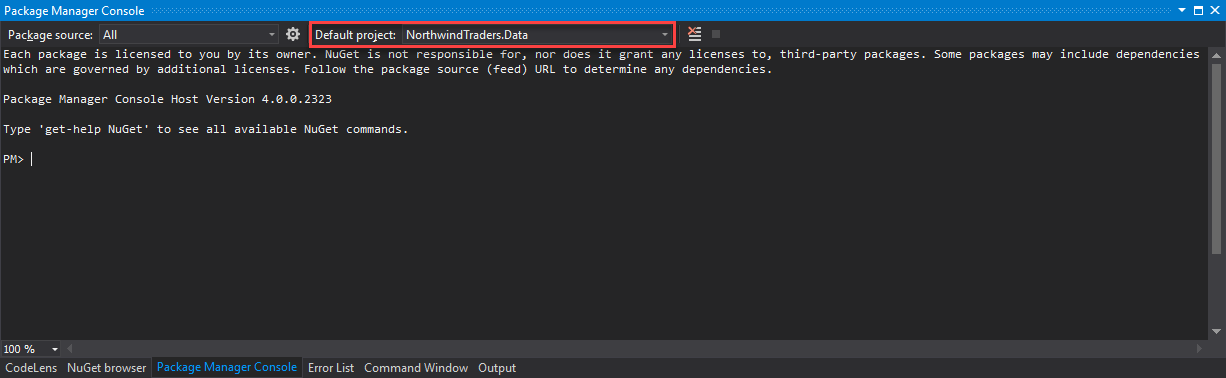
- Open the Package Manager Console (View | Other Windows | Package Manager Console)
- Set the Default Project to NorthwindTraders.Data
- Execute the following commands:
Install-Package Microsoft.EntityFrameworkCore.SqlServer
Install-Package Microsoft.EntityFrameworkCore.SqlServer.Design
Install-Package Microsoft.EntityFrameworkCore.Tools
We are now ready to start building the Northwind data model. Before you continue, run a quick build (Ctrl + Shift + B) to ensure there are no errors.
Creating the data model
We will generate the data model by scaffolding from an existing database. To do so we will use a number of T-SQL scripts.
This archive contains three scripts:
- Northwind.sql creates the Northwind tables, views, and stored procedures
- DataSeed_Up.sql seeds the database with data
- DataSeed_Down.sql removes all data from the database
Extract the scripts in a known location, we will use them in the following steps.
- Within Visual Studio 2017, open SQL Server Object Manager (View | SQL Server Object Manager)
- Expand the SQL Server item you would like to use, right-click on Databases and click Add New Database
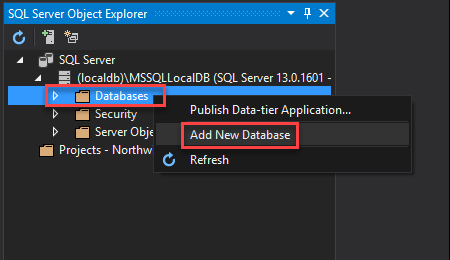
- Set Database Name to Northwind
- Click OK
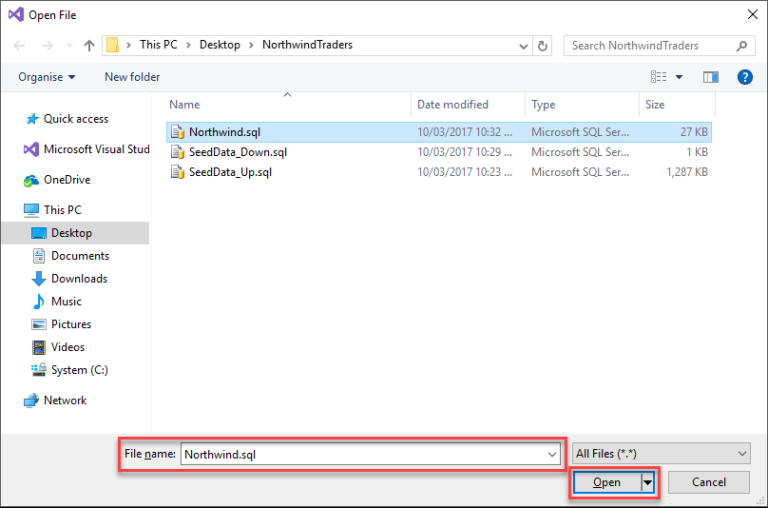
- Click File | Open | File… (Ctrl + O)
- Locate and select the Northwind.sql script
- Click Open
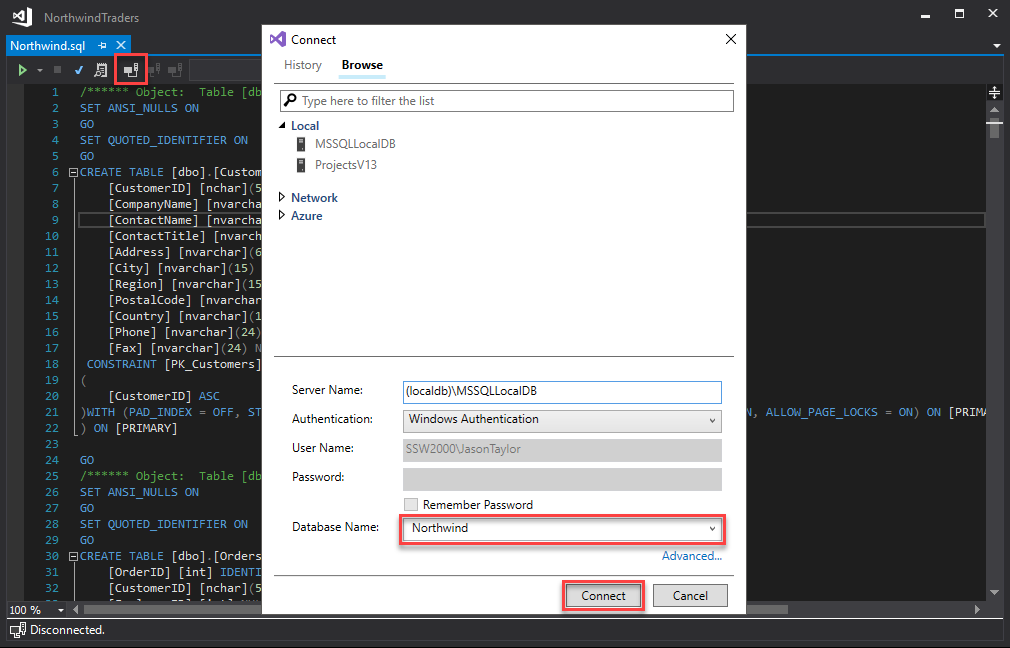
- Click Connect
- Select the relevant server and Northwind database
- Click Connect
- Click Execute (Ctrl + Shift + E)
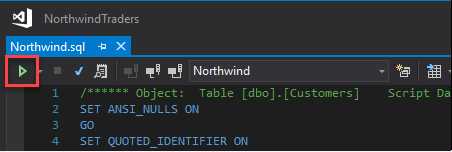
Your new Northwind database has been created, and we will now use this database to scaffold our data model.
- Open the Package Manager Console and set the Default project to NorthwindTraders.Data
- Execute the following command (specifying the relevant connection string):
Scaffold-DbContext -Connection "Server=(LocalDb)\MSSqlLocalDb;Database=Northwind;Trusted_Connection=True;" -Provider "Microsoft.EntityFrameworkCore.SqlServer" -DataAnnotations
Pro Tip:
The NorthwindTraders.Data project now contains a new NorthwindContext and entities for each table within the database, such as Customers, Orders and Products.
Next Steps
In part 1 of this series, I guided you through the steps to create a new Northwind solution, set up a new Northwind database, and scaffold the data model by using Entity Framework Core. You now have a code first version of Northwind, but we still have a long way to go. In the next part, I'll cover the following:
- Refactoring the data model. We will change the pluralisation of our entities and rename some of our navigation properties.
- Creating data migrations. We will add an initial-create migration, responsible for creating the database.
- Seeding the data model. We will use a script to seed our database and discuss an alternate approach that supports many providers.
- Test drive Northwind. We'll create a simple Web API to test drive our new Northwind database.
I hope you’ve found this post useful. Feel free to reply with any questions, comments, or improvements.