Building Your First Web API with ASP.NET Core and Visual Studio Code

After completing the Building Your First Web API with ASP.NET Core MVC and Visual Studio tutorial, I decided to try building the same API using Visual Studio Code and the .NET Core CLI. I've focused only on the steps required, so you should refer to the original tutorial should any concepts require further explanation. Let's dive in.
Prerequisites
- Install Visual Studio Code
- Install the .NET Core SDK (you need 1.0.0-rc4-004771 or newer)
- Install Postman
Create the project
Open the command prompt (or terminal) and navigate to the folder where you would like to create the project. Execute the following commands:
mkdir TodoApi
cd TodoApi
dotnet new webapi
dotnet restore
Next, open the project in VS Code using the following command:
code .Within VS Code Explorer, open Startup.cs.
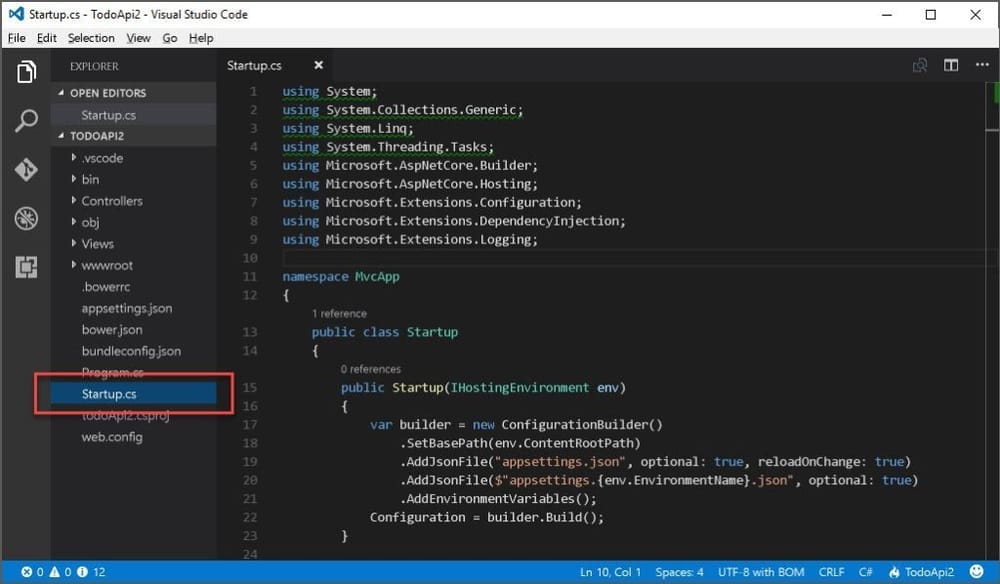
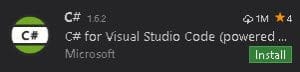
You will be prompted to install the 'C#' extension. Click Show Recommendations and then click Install.
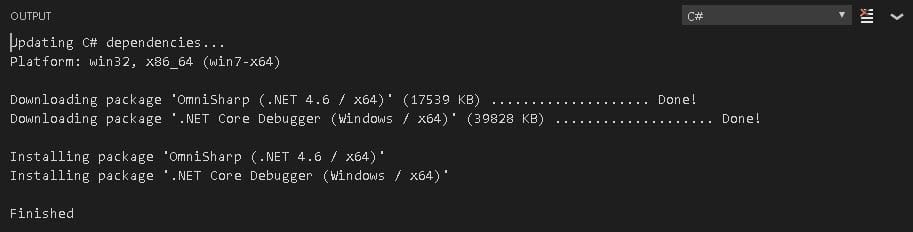
Click Reload. After reloading, VS Code will begin Updating C# dependencies.
Once complete, you will be prompted to add the missing assets to build and debug the project. Click Yes.

You can now launch the project by pressing F5, and navigate to http://localhost:5000/api/values to load the default controller.
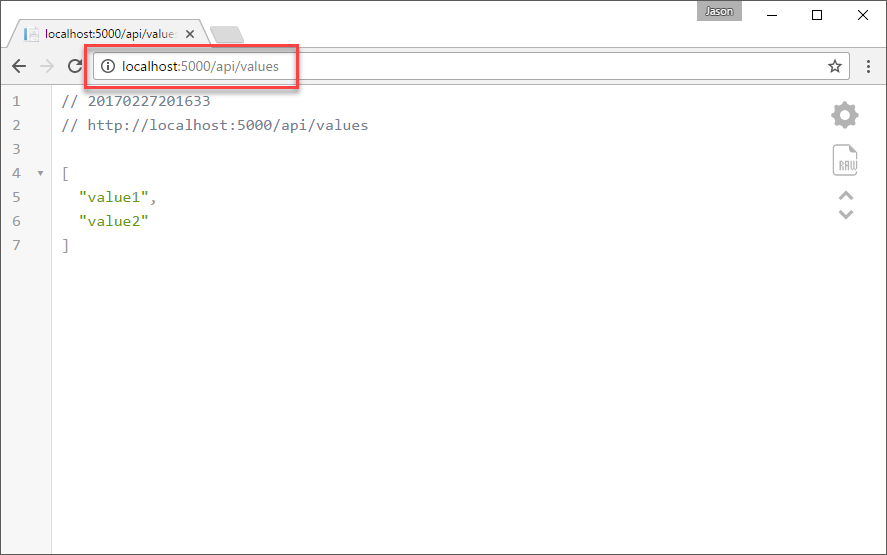
Press Shift + F5 to stop debugging.
Add a model class
Within the main project folder, add a folder named Models and then create a new file named TodoItem.cs.
Define a TodoItem class as follows:
using System.ComponentModel.DataAnnotations;
using System.ComponentModel.DataAnnotations.Schema;

namespace TodoApi.Models
{
    public class TodoItem
    {
        [Key]
        [DatabaseGenerated(DatabaseGeneratedOption.Identity)]
        public long Key { get; set; }
        public string Name { get; set; }
        public bool IsComplete { get; set; }
    }
}
Add a database context and repository class
For this project, we'll be using the new Entity Framework Core InMemory database provider. This database provider allows Entity Framework Core to be used with an in-memory database.
Update your TodoApi.csproj file to include a reference to the provider as follows:
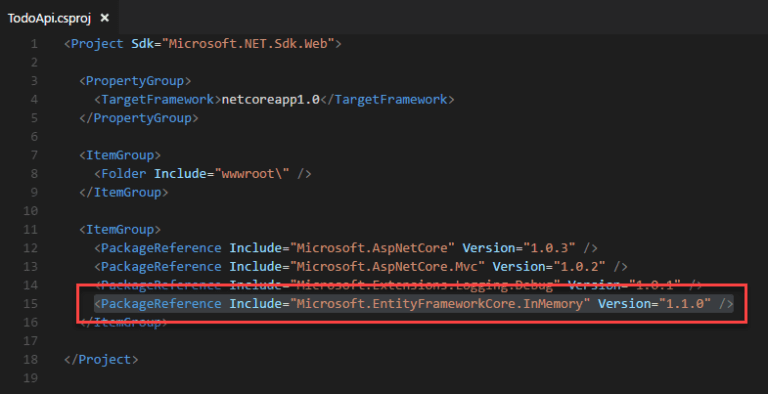
Once complete, you will be prompted to restore unresolved dependencies. Click Restore.

Within the Models folder, add a new file named TodoContext.cs.
Define the TodoContext class as follows:
using Microsoft.EntityFrameworkCore;

namespace TodoApi.Models
{
    public class TodoContext : DbContext
    {
        public TodoContext(DbContextOptions options) : base(options)
        {
        }

        public DbSet TodoItems { get; set; }
    }
}
Within the Models folder, add a new file named ITodoRepository.cs.
Define the ITodoRepository interface as follows:
using System.Collections.Generic;

namespace TodoApi.Models
{
    public interface ITodoRepository
    {
        void Add(TodoItem item);
        IEnumerable GetAll();
        TodoItem Find(long key);
        void Remove(long key);
        void Update(TodoItem item);
    }
}
Within the Models folder, add a new file named TodoRepository.cs.
Implement the TodoRepository class as follows:
using System;
using System.Collections.Generic;
using System.Linq;

namespace TodoApi.Models
{
    public class TodoRepository : ITodoRepository
    {
        private readonly TodoContext _context;

        public TodoRepository(TodoContext context)
        {
            _context = context;
            Add(new TodoItem { Name = "Item1" });
        }

        public IEnumerable GetAll()
        {
            return _context.TodoItems.ToList();
        }

        public void Add(TodoItem item)
        {
            _context.TodoItems.Add(item);
            _context.SaveChanges();
        }

        public TodoItem Find(long key)
        {
            return _context.TodoItems.FirstOrDefault(t => t.Key == key);
        }

        public void Remove(long key)
        {
            var entity = _context.TodoItems.First(t => t.Key == key);
            _context.TodoItems.Remove(entity);
            _context.SaveChanges();
        }

        public void Update(TodoItem item)
        {
            _context.TodoItems.Update(item);
            _context.SaveChanges();
        }
    }
}
Register the database context and repository
Open the Startup.cs file and add the following using directives:
using TodoApi.Models;
using Microsoft.EntityFrameworkCore;
Update the ConfigureServices method as follows:
public void ConfigureServices(IServiceCollection services)
{
    // Add framework services.
    services.AddMvc();

    services.AddDbContext(options => options.UseInMemoryDatabase());
    services.AddSingleton();
}
Add a controller
In the Controllers folder, add a new TodoController.cs file.
Implement the TodoController class as follows:
using System.Collections.Generic;
using Microsoft.AspNetCore.Mvc;
using TodoApi.Models;

namespace TodoApi.Controllers
{
    [Route("api/[controller]")]
    public class TodoController : Controller
    {
        public TodoController(ITodoRepository todoItems)
        {
            TodoItems = todoItems;
        }

        public ITodoRepository TodoItems { get; set; }

        [HttpGet]
        public IEnumerable GetAll()
        {
            return TodoItems.GetAll();
        }

        [HttpGet("{id}", Name = "GetTodo")]
        public IActionResult GetById(long id)
        {
            var item = TodoItems.Find(id);
            if (item == null)
            {
                return NotFound();
            }
            return new ObjectResult(item);
        }

        [HttpPost]
        public IActionResult Create([FromBody] TodoItem item)
        {
            if (item == null)
            {
                return BadRequest();
            }
            TodoItems.Add(item);
            return CreatedAtRoute("GetTodo", new { id = item.Key }, item);
        }

        [HttpPut("{id}")]
        public IActionResult Update(long id, [FromBody] TodoItem item)
        {
            if (item == null || item.Key != id)
            {
                return BadRequest();
            }

            var todo = TodoItems.Find(id);
            if (todo == null)
            {
                return NotFound();
            }

            todo.Name = item.Name;
            todo.IsComplete = item.IsComplete;

            TodoItems.Update(todo);
            return new NoContentResult();
        }

        [HttpDelete("{id}")]
        public IActionResult Delete(long id)
        {
            var todo = TodoItems.Find(id);
            if (todo == null)
            {
                return NotFound();
            }

            TodoItems.Remove(id);
            return new NoContentResult();
        }
    }
}
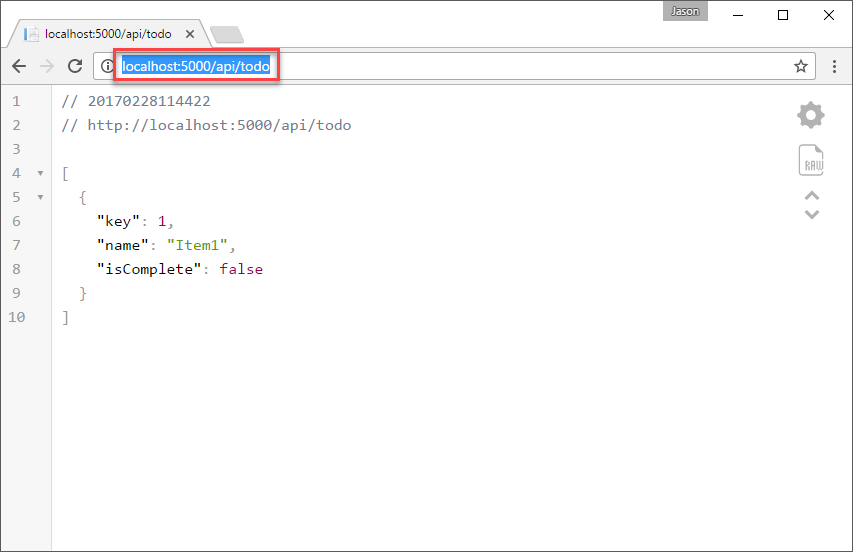
Press F5 to launch the application, and navigate to http://localhost:5000/api/todo to load the new controller.
Testing the project
We will now test all actions on the controller using Postman.
Testing GetAll
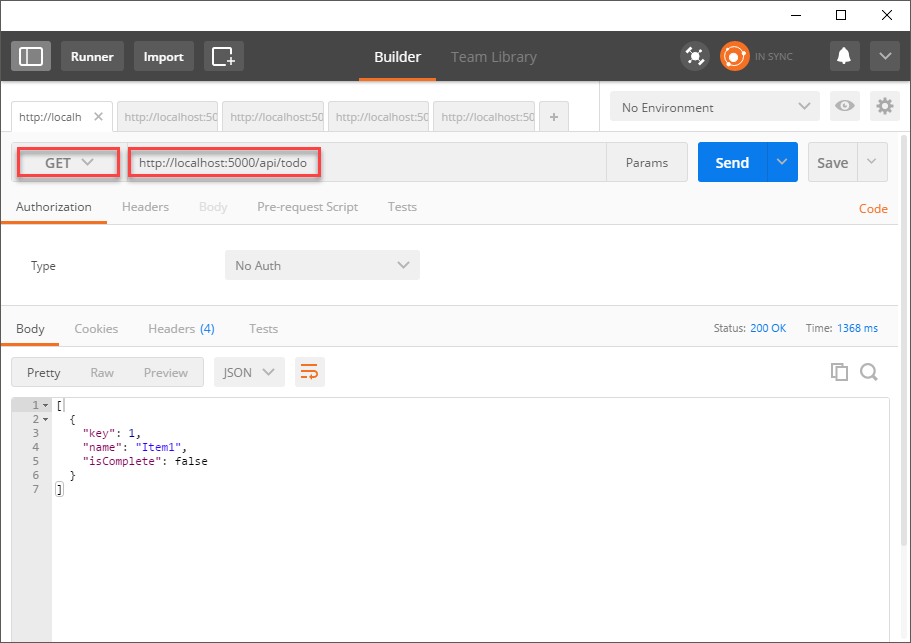
Launch PostMan, and configure as shown above. Specifically:
- Set the HTTP method to
GET - Set the URL to
http://localhost:5000/api/todo - Click Send
Testing GetById
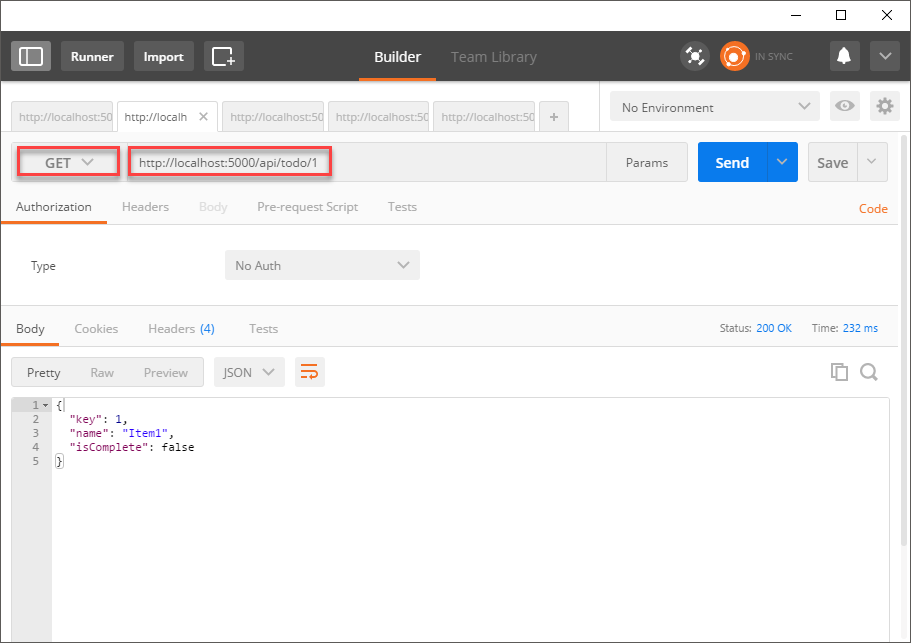
Open a new tab, and configure as follows:
- Set the HTTP method to
GET - Set the URL to
http://localhost:5000/api/todo/1 - Click Send
Testing Create
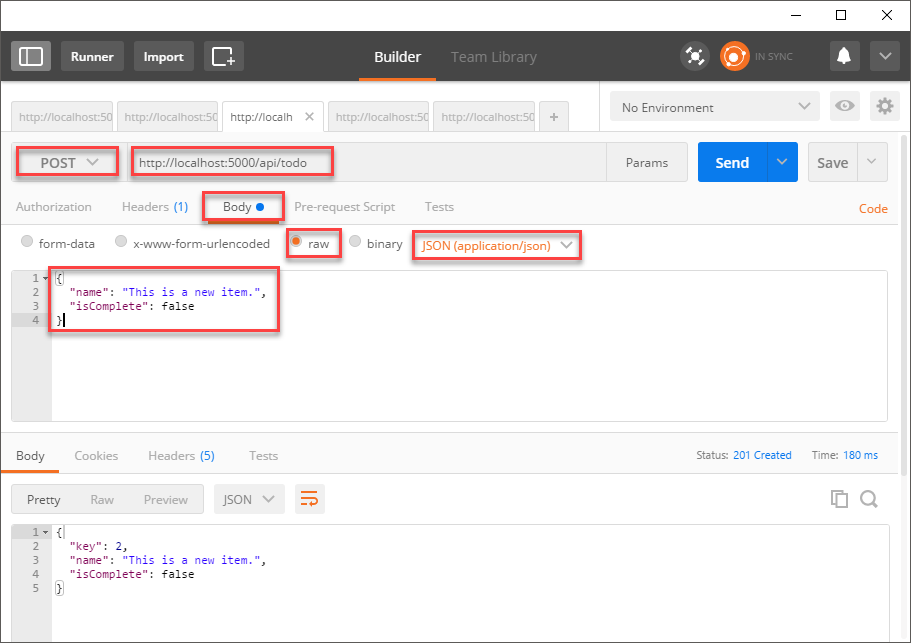
Open a new tab, and configure as follows:
- Set the HTTP method to
POST - Set the URL to
http://localhost:5000/api/todo/ - Select Body
- Select raw
- Set the content type to
JSON (application/json) - In the editor, enter a todo item, such as:
{ "name": "This is a new item.", "isComplete": false } - Click Send
Testing Update
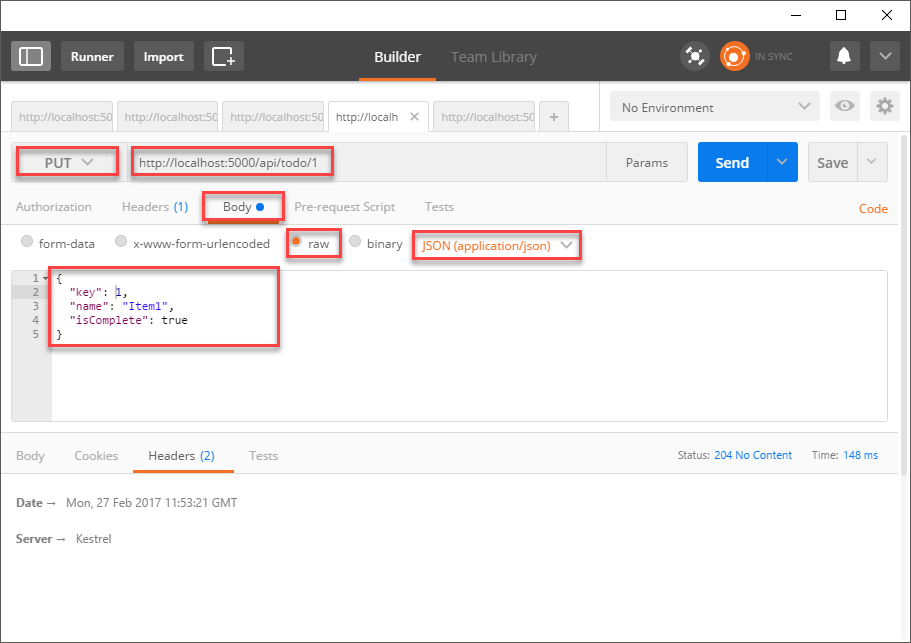
Open a new tab, and configure as follows:
- Set the HTTP method to
PUT - Set the URL to
http://localhost:5000/api/todo/1 - Select Body
- Select raw
- Set the content type to
JSON (application/json) - In the editor, enter a todo item, such as:
{ "key":"1", "name": "Item1", "isComplete": true } - Click Send
Note that a successful result should be: 204 No Content.
Testing Delete
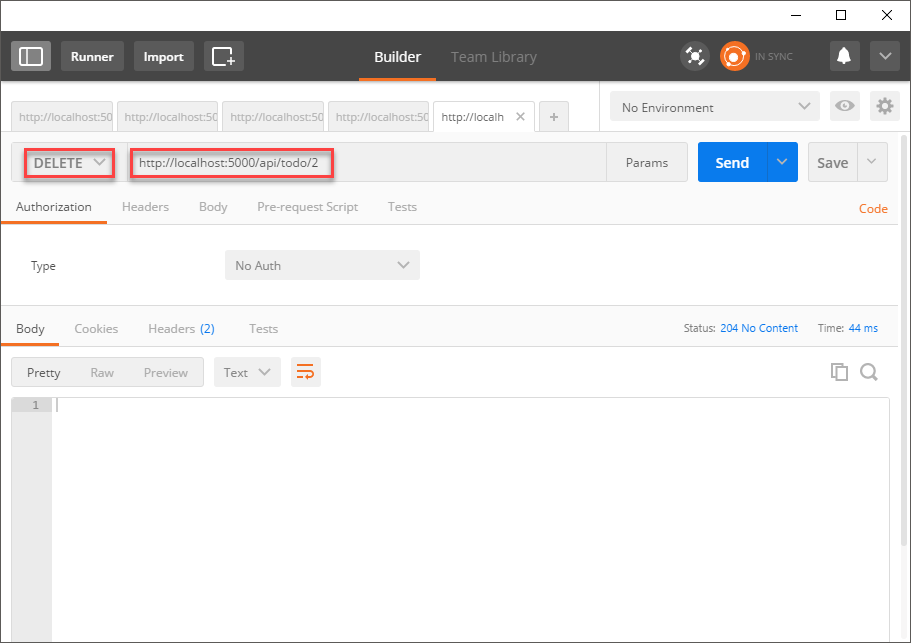
Open a new tab, and configure as follows:
- Set the HTTP method to
DELETE - Set the URL to
http://localhost:5000/api/todo/1 - Click Send
Note that a successful result should be: 204 No Content.
Next Steps
That's all it takes to build your first Web API using ASP.NET Core and Visual Studio Code. If you ran into any issues, you can review the source code here. I'm planning to write some additional posts to expand this demo further, including:
- Adding unit tests with xUnit.net
- Deploying to Azure
Thanks for reading, feel free to post any questions or comments below.